Anydesk
AnyDesk, a fast remote access to computers

Safe & Secure
WinSCP is an efficient and fast file transfer client to offer secure file transfer, supporting multiple protocols, such as FTP, SFTP, SCP, WebDAV, S3, and so on. It proves to be the best alternative to multiple popular file transfer clients, including FileZilla and Cyberduck, offering secure file transfer between local and remote systems.
The app offers a simple GUI with integration to Windows Explorer, offering smooth file transfer using a drag-and-drop option. It is equally reliable for managing personal as well as professional workflows, streamlining file management in different scenarios, such as IT administrators, developers, content managers, and so on.
Windows Secure Copy, or commonly known as WinSCP, is a free and open-source client for FTP and SFTP, designed for Microsoft Windows. You can access the source code of the app available on GitHub, under an open-source license. However, the program itself is available as proprietary freeware.
The app supports FTP, SFTP, SCP, and WebDAV protocols, allowing users to copy, share, and manage files between a local computer and a remote server. You can transfer your files securely and comfortably.
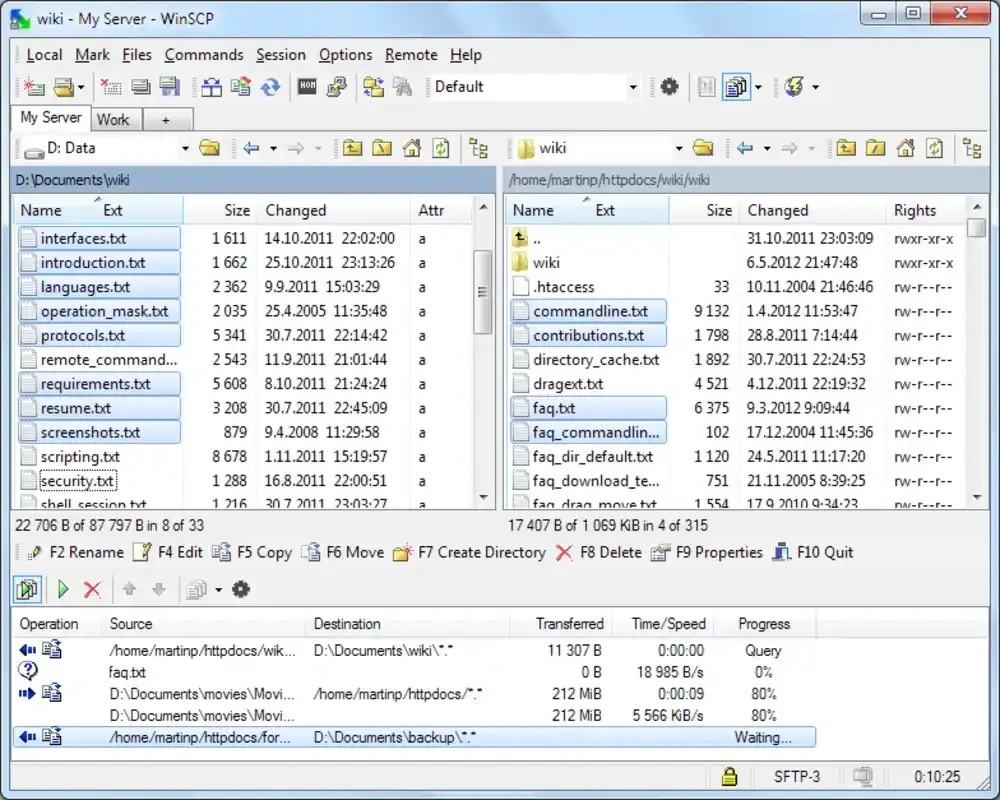
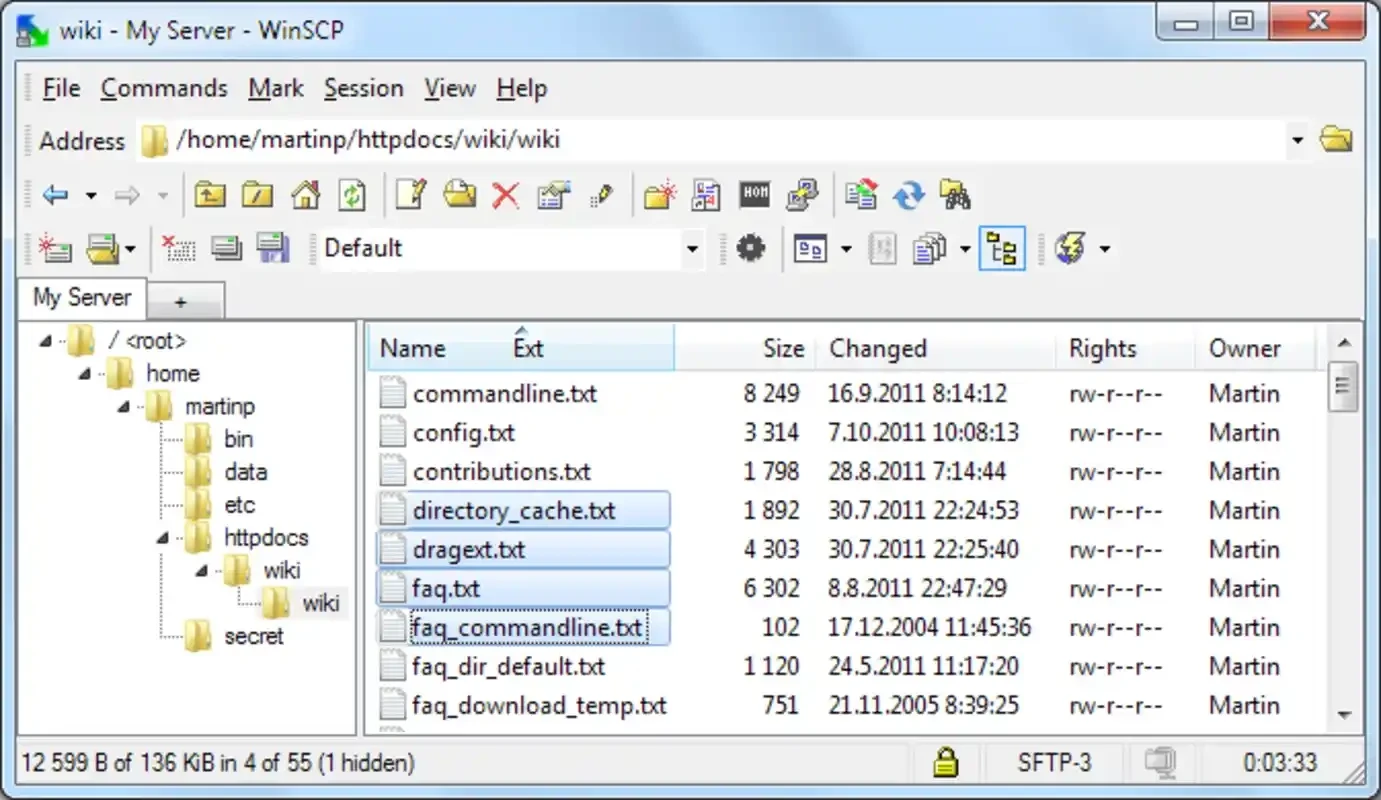
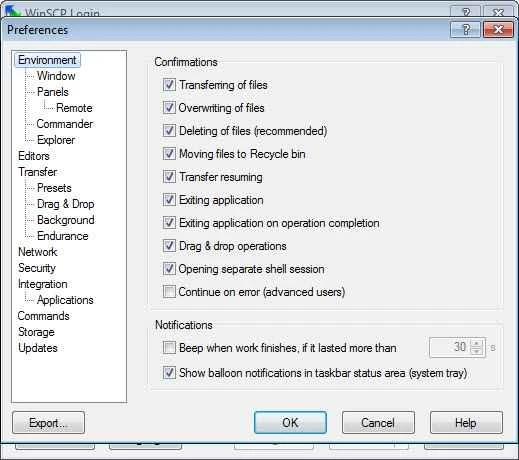
You will find an easy workflow with a double-sided interface, reminding you multiple powerful file managers. After launching the app and connecting to the remote server, you are capable of performing all basic operations, including cutting, copying, moving, renaming, and lot of others. You can switch between Norton-like and Explorer-like GUIs using the Preferences window. The two-sided mode proves comfortable for continuing your workflow.
After selecting the type of interface according to your preferences: Explorer Interface similar to Windows File Explorer, or Commander Interface for more advanced operations. You have to enter login information, such as host name, user name, password, and so on. After logging in, you are directed to a directory for uploading and managing files. Now, you can access your server remotely and allow others to work on your files. As an administrator, you need to share login information with them. Enabling the ‘Synchronization’ option will reflect the changes made from a remote server on your local machine.
The app offers multiple updates from time to time, and recent updates are available for enhancing protocol support, improving security measures, and fixing minor bugs. The updates help to maintain stability, offering free to use, continues modern file transfer requirements. No doubt, the enterprise-level integration is limited, but you will find it one of the best solutions for IT administrators and developers within consistent, high-quality file management, reliable connectivity, and streamlined workflows.
It is another core feature, allowing users to configure connection details and store them for later use. It will make your next server connection easier and faster. Moreover, its support for protocols is not limited to FTP and SFTP, but also extended to Amazon S3, SCP, FTPS, and WebDAV. It is also integrated with PuTTY and multiple other applications.
You can simplify multiple scripting and automation functions, such as file transfer scheduling, scripts converting from one client to another, etc. It also enables users to create restrictions or conditions for transferring files. However, a few things need to be improved within the app, such as short connection times that force disconnections, slow transfer speeds, and so on.
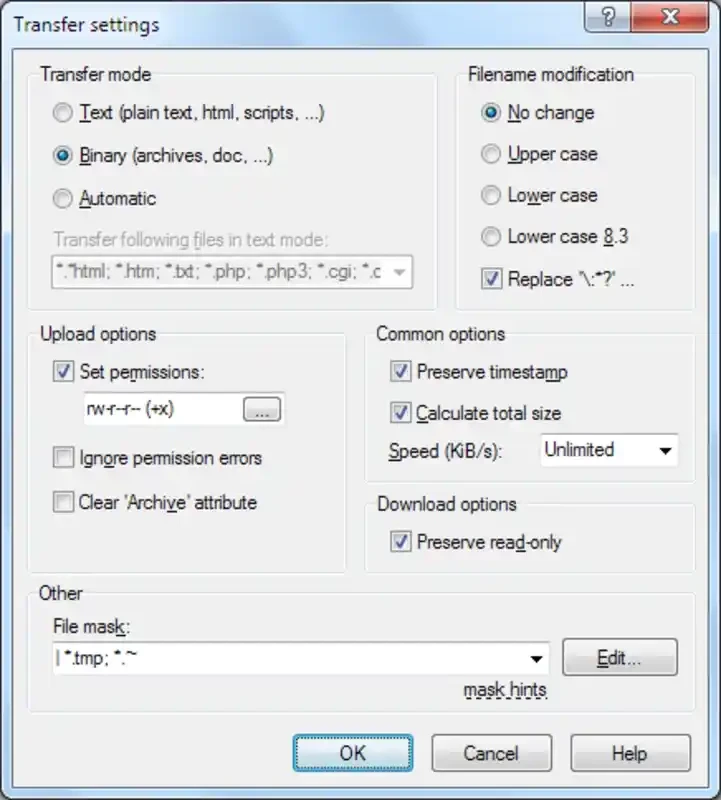
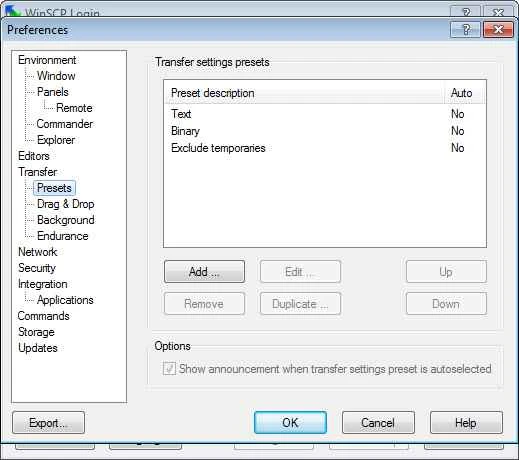
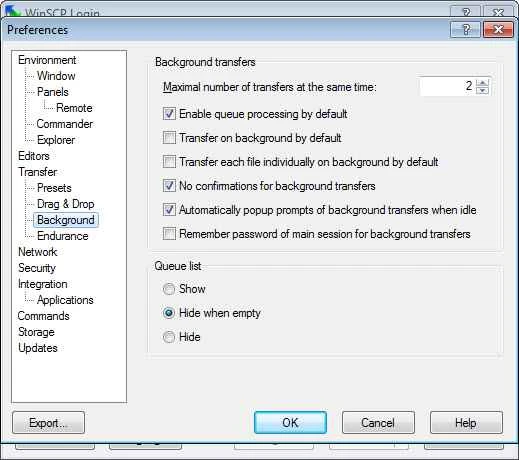
The app helps to explore files on the local PC and initiate a smooth file transfer to the remote server. It supports both types of transfer modes: binary and text, allowing users to transfer files simultaneously or in the background, and queue processing as well. If your connection is lost, the app tries to reconnect automatically. Moreover, it is also integrated with the shell, using the Windows context menu for starting a new transfer.
It is one of the core features to make your file transfer secure between computers. It also supports Secure Copy Protocol (SCP) or the SSH File Transfer Protocol (SFTP), and a built-in text editor for editing local or remote text files. It is also possible to operate the app utilizing a console interface via various commands. Moreover, install shell extensions to enhance productivity, adding a drag-and-drop option, a ‘Send to’ context menu, and, in the case of using PuTTY, sharing of settings and other functionalities is also possible for both clients.
The app offers enhanced usability, delivering intuitive navigation, customizable interface layouts, efficient session management, and so on. It minimizes errors, ensuring consistent and reliable performance with multi-language support, automated task scheduling, and frequent updates. In spite of requiring a learning curve for using advanced scripting features, the app proves to be the best option for both new as well as powered users to offer a smooth, secure, and manageable file transfer.
Pros
Cons

AnyDesk, a fast remote access to computers

Accelerated Downloading with Internet Download Manager (IDM)

SHAREit for PC is the best option for a P2P file-sharing process without using Wi-Fi.

ShareMe for PC, a freeware and streamlined file-sharing app

uTorrent, a powerful, lightweight, and fastest P2P file-sharing software

Xender for PC, an effective and convenient file transfer utility